How to Keep Your Downloads Folder Clean on Windows
Your Downloads folder is where files go to hide. Learn a simple sort by type system, the built-in Windows tools that help, and a five-minute weekly routine that keeps the mess from coming back.
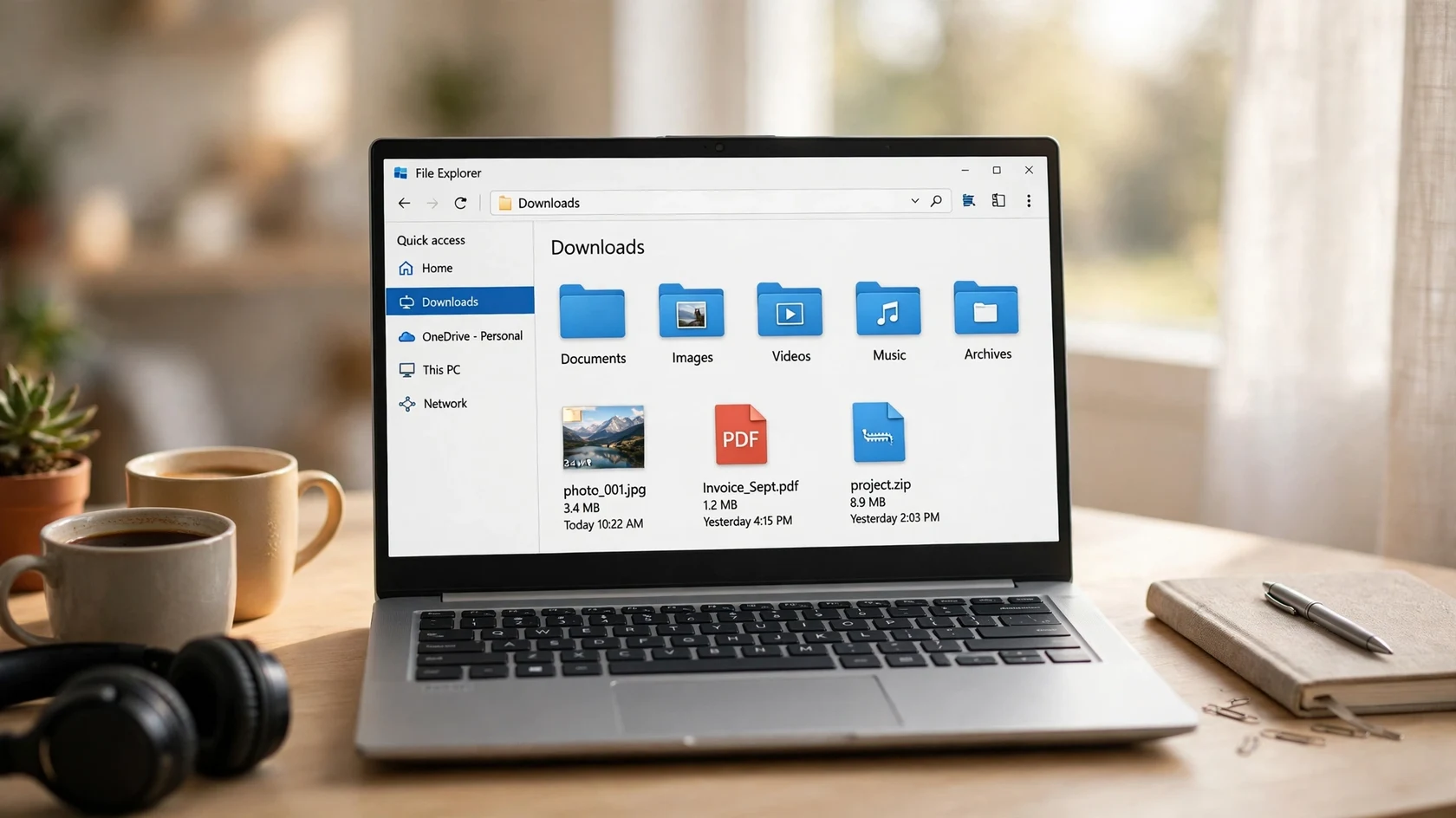
Open your Downloads folder right now and count the files. If the number is over fifty, you are not disorganised, you are normal. The Downloads folder is the one place on a Windows PC where everything lands by default: lecture slides, invoices, screenshots, installers, ZIP files, photos a friend sent you, that PDF you meant to read last month. Nothing arrives sorted, and nothing ever leaves on its own. The good news is that keeping it clean is not a personality trait, it is a small system. This guide sets one up: a simple sort by type, the built-in Windows tools that do half the work, and a five-minute weekly routine that stops the mess from growing back.
Who this guide is for
Anyone whose Downloads folder has become a junk drawer: students collecting lecture files, freelancers juggling client attachments, or anyone who has ever downloaded the same file twice because they could not find the first copy. No extra software is needed for the core system, and every step uses tools already on your PC.
Why the Downloads folder gets messy
The mess has a simple cause. Every browser, every email client and every chat app sends downloads to the same folder, and none of them asks where the file should live. A photo, a bank statement and a game installer all land side by side. When you need a file later, you search by memory instead of by place, and searching a folder of 400 mixed files is slow even with Windows search. The fix is to give every file type a home, so that finding something means opening one folder instead of scanning hundreds of names.
Step one: sort by type, not by date or project
The simplest system that actually lasts is sorting by file type. Create these subfolders inside Downloads, or inside Documents if you prefer the sorted files to live there:
File type
Goes into
Examples
PDFs and documents
Documents
Invoices, lecture notes, CVs, ebooks
Pictures
Images
Screenshots, photos, wallpapers
Video
Videos
Recordings, clips, downloaded lectures
Audio
Music
Songs, voice notes, podcasts
Compressed files
Archives
ZIP and RAR files
Installers
Programs
Setup files, .exe and .msi downloads
Spreadsheets and slides
Documents
Excel files, PowerPoint decks
Seven folders cover almost everything a home PC downloads. If a file fits two folders, pick the one you would look in first and stay consistent.
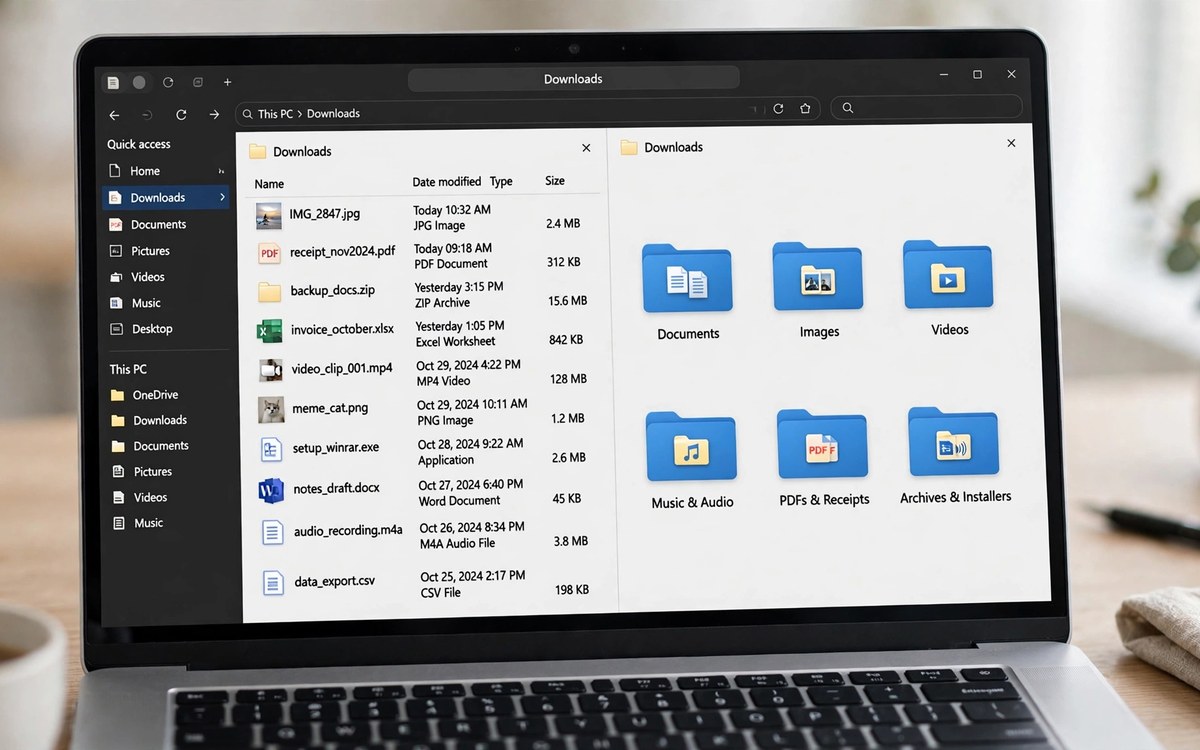
Move the existing files first, in one sitting, before worrying about new ones. Sort the Downloads view by Type in File Explorer (right-click in an empty area, then Sort by, then Type), and the files line up in groups you can select and drag in batches. A folder with 300 files takes about fifteen minutes this way, and you only ever do the big sort once.
The same folder, before and after. Sorting by type once is the whole job, the routine below just keeps it that way.
Step two: let Windows help with the routine
Windows already has two features that keep a sorted folder sorted. The first is Storage Sense, which can delete files in Downloads that you have not opened in a set time. Turn it on in Settings, then System, then Storage, and set it to clear unopened Downloads after 30 or 60 days. It only touches files you have ignored, so anything you actually use stays put.
The second is changing where your browser saves files. If you always save lecture slides to a Study folder and receipts to a Finance folder, set the browser to ask where to save each download instead of sending everything to Downloads. In Chrome and Edge this is under Settings, then Downloads, then "Ask where to save each file before downloading". One extra click per download saves the weekly sort entirely for files you already know where they belong.
Step three: the five-minute weekly routine
A sorted folder only stays sorted if someone checks it. Pick a fixed time, Friday afternoon works well, and run this short routine:
Open Downloads and sort by Date modified, newest first.
Move this week's files into their type folders. Most weeks this is fewer than twenty files.
Delete installers for programs you already installed. They are the single biggest source of clutter, and you can always download them again.
Empty the Recycle Bin, so deleted files stop taking up space.
Check the top of the list for duplicates. If a file name ends in (1), you downloaded it twice, and the older copy can go.
Handy tip
Do the routine at the same time as something you already do weekly, like clearing your email inbox. Habits that ride on existing habits are the ones that survive past week two.
Five minutes, once a week, at the same time each week. That is the whole routine.
When sorting by hand stops being enough
The weekly routine works, but it still depends on you remembering to do it. If your Downloads folder fills up faster than you can sort it, usually because you download a lot of attachments for work or study, it is worth automating the move itself. A small offline tool can watch the folder and move each new file into the right subfolder the moment it arrives, by file type, with no account and no internet connection. Our own Auto Organizer for Windows does exactly this, and it is the tool this guide's system is based on.
Not sure what a file is? Right-click it, choose Properties, and check the date and size before deciding. Old installers and duplicate downloads are safe to delete.
Not sure where a file belongs? Put it in Documents and move on. A roughly sorted folder beats a perfectly planned one that never gets built.
Worried about deleting something important? Move it to a folder called To Sort and review that folder once a month. Anything still there after a month was not urgent.
Running out of space? Sort by Size in File Explorer. The biggest files are usually videos and installers, and a handful of deletions can free gigabytes.
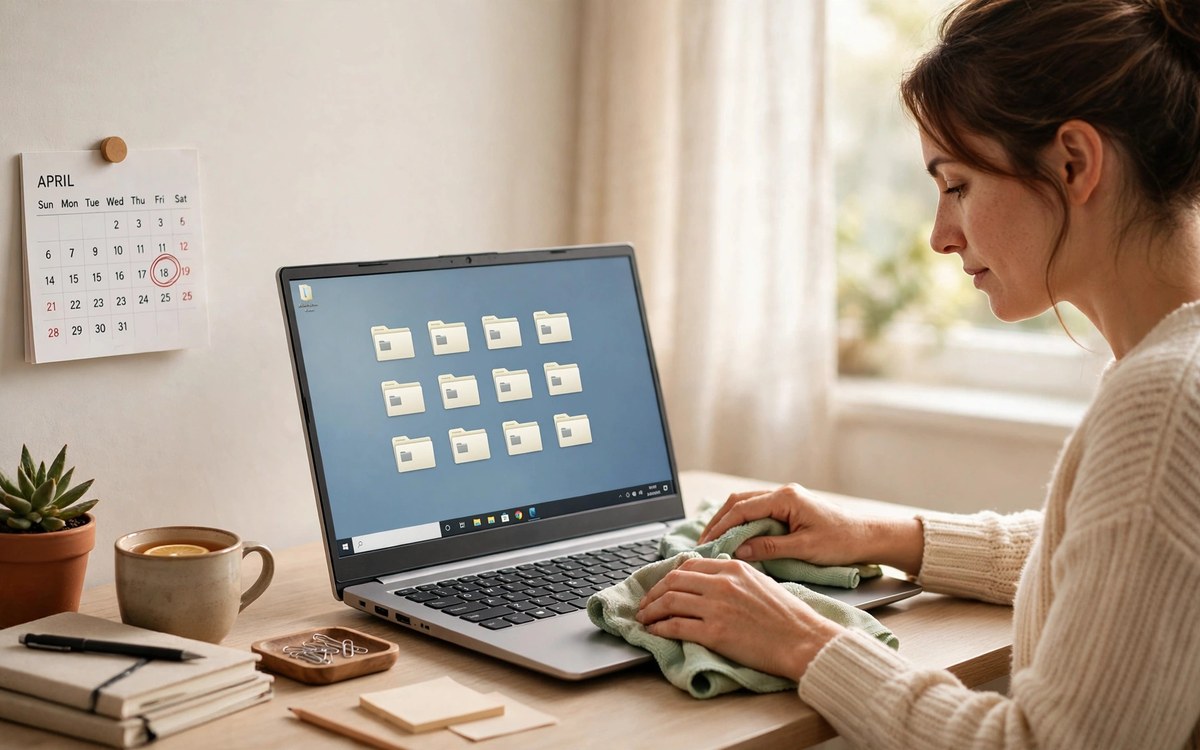
A clean Downloads folder is a small win, but it is a win you feel every day. You stop downloading the same file twice, you find the invoice in ten seconds instead of ten minutes, and your desktop stops being the overflow car park for files with nowhere to go. Set up the folders today, run the first sort, and put the five-minute routine in your calendar for Friday. The folder will not clean itself, but five minutes a week is all it asks.
Frequently asked questions
Is it safe to delete old files from the Downloads folder?
Usually yes, with one check first. Downloads is a holding folder, not a storage folder, so most of what sits there is installers, duplicates and files you already moved elsewhere. Before a big clear-out, sort by Date modified and check anything recent. If a file is the only copy of something important, move it to Documents first, then delete the rest.
Should I sort by type or by project?
By type, for the Downloads folder. Project folders work well inside Documents, where files stay for months, but Downloads is a transit lounge: files arrive mixed and leave quickly. Sorting by type needs no decisions, which is why it survives. Once a file has a permanent home, sort it by project there if you like.
How do I stop my browser saving everything to Downloads?
In Chrome or Edge, go to Settings, then Downloads, and turn on "Ask where to save each file before downloading". Your browser will then ask for a location on every download. Firefox has the same option under Settings, then General, then Files and Applications.
What is Storage Sense, and should I turn it on?
Storage Sense is a built-in Windows feature that automatically frees space, including deleting files in Downloads that you have not opened in a set time, such as 30 or 60 days. It is worth turning on, but read its settings first so you know exactly what it will delete. It never touches files you have opened recently.
Can I automate the sorting so I do not have to do it weekly?
Yes. A small tool that watches your Downloads folder can move each new file into the right subfolder by file type as soon as it arrives, which removes the weekly routine almost entirely. Our Auto Organizer for Windows does this offline, with no account and no subscription, and you can read about it at fundora.dev/auto-organizer/.
Muhammad Abdullah is a researcher and writer. He tests the tools and methods he recommends, prefers free options, and updates his guides when things change.
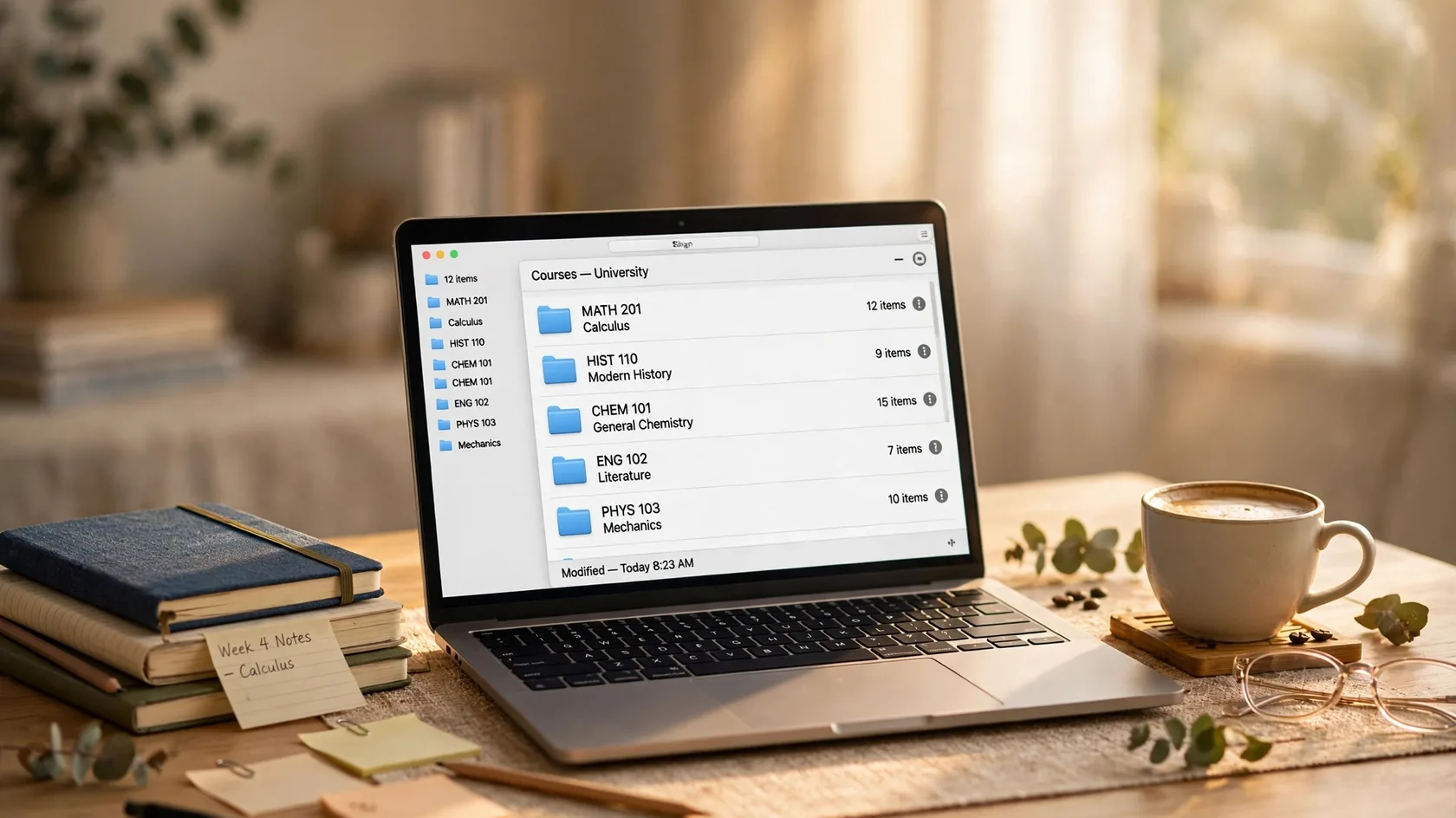
Lecture slides in Downloads, essays named final_final_v2, and a desktop covered in screenshots. This guide gives you a simple folder system, a file naming habit, and a ten minute weekly tidy that keeps your university files findable all year.
Excel shows up in lab reports, budgets, group projects and part-time jobs. Learn the ten skills that cover most student work, with small practice tasks you can finish in one sitting.
Before you buy anything: the free software fixes, settings changes and clean-ups that bring an ageing laptop back to comfortable everyday speed.
3 October 2026· 7 min read
The Fundora Letter
Never miss a post
One useful guide, every Sunday — the week's best study, research and AI-tool guides, delivered quietly to your inbox. No spam, no selling your address — unsubscribe any time.
Signups are handled by Brevo, our email service — your address is stored on Brevo's servers so we can send the letter. It is never sold, and every issue has an unsubscribe link.
Fundora uses cookies to analyse traffic and improve your experience. Learn more