
Two-Factor Authentication Explained: Protect Every Account You Own
What two-factor authentication is, why SMS codes are the weakest option, and a step-by-step plan to secure your email, banking and social accounts today.
Before you buy anything: the free software fixes, settings changes and clean-ups that bring an ageing laptop back to comfortable everyday speed.
An old laptop that takes five minutes to wake up feels finished — but most slowness is software, not age. Work through these free fixes in order; most machines feel dramatically better by fix five.
This guide is for anyone whose laptop has become the reason they avoid starting work — five-minute boots, fans like a hairdryer, a beachball or hourglass at every click. It assumes no budget and no technical background, and it works through fixes in the order a technician would: find the bottleneck, remove the software weight, and only then talk about hardware. Mac and Windows are both covered; where steps differ, both are given.
A real restart (not sleep) clears memory and stuck processes. Then open Task Manager on Windows or Activity Monitor on a Mac, and sort by CPU and memory. One misbehaving app is behind a surprising share of 'slow computer' complaints — and it is usually a browser tab.
In Task Manager, open the Startup tab and disable everything you do not need in the first minute after login: game launchers, updaters, chat apps. They can all still be opened manually later. This single change often halves the boot-to-usable time.
Operating systems crawl when the system drive is nearly full. Aim to keep at least 15–20 percent free. Empty the recycle bin, clear the Downloads folder, and use the built-in storage tools — Storage Sense on Windows, the storage settings on macOS — to remove temporary files safely.
While you are in Task Manager or Activity Monitor, check two more suspects. On Windows, the Performance tab tells you your disk type — if it says HDD, you have found your main bottleneck and fix 10 becomes your plan. On both systems, watch memory: a machine with 4 GB of RAM running a modern browser is not broken, it is outnumbered, and closing tabs will help more than any setting.

Old software consumes space, runs background services and sometimes argues with newer versions. Remove anything you have not opened in six months; you can always reinstall it later.
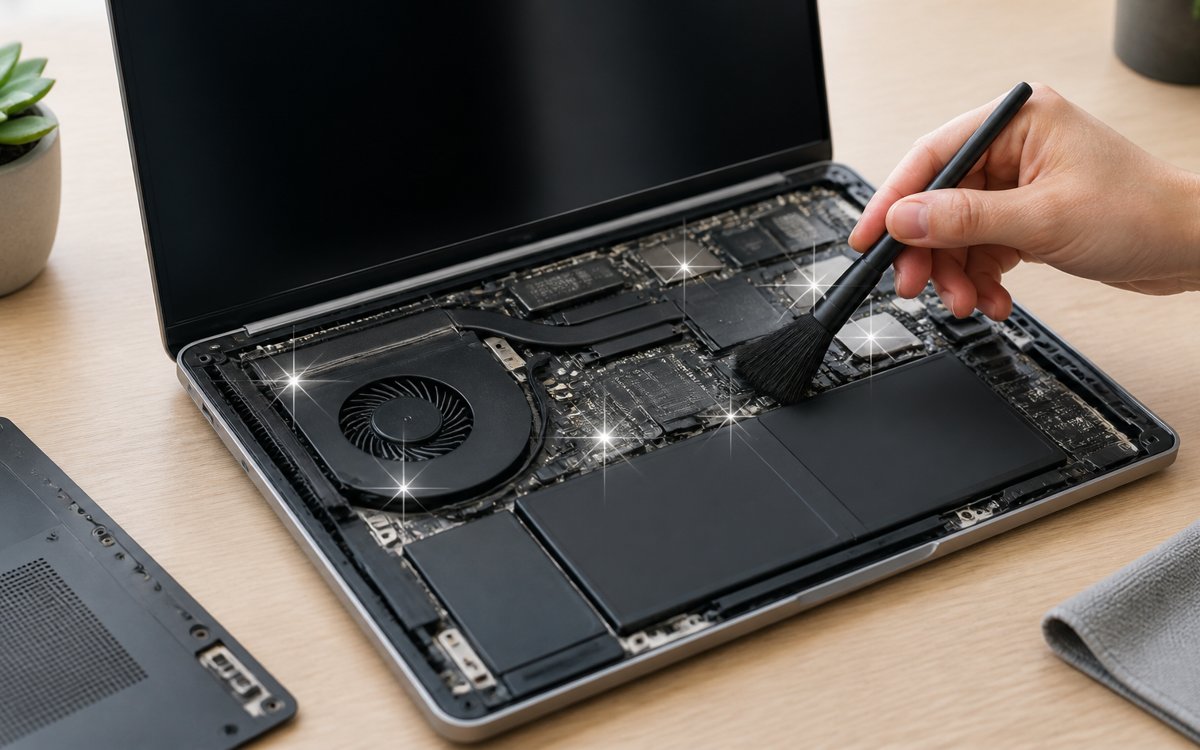
Install pending operating-system and driver updates — they regularly include performance fixes. Run a full scan with the built-in antivirus (Windows Security is genuinely good) to rule out unwanted software. Physically, blow dust from the vents with compressed air; a laptop that cannot breathe throttles its own processor to stay cool.
A worn battery does more than die early — some laptops quietly cap their processor speed on a failing battery or a weak charger. On Windows, open a terminal and run powercfg /batteryreport to see your battery's current capacity against its design capacity; if it holds under about half, performance on battery power will suffer and a replacement (often cheap for older models) is a real fix. Heat is the other silent throttle: if the fan roars during simple tasks after your dust clean, the thermal paste between processor and heatsink may have dried out — a repair-shop job, but an inexpensive one.
Animations and transparency are decoration your hardware pays for. On Windows, search for 'adjust the appearance and performance of Windows' and choose best performance, then re-enable font smoothing. On macOS, enable 'Reduce transparency' and 'Reduce motion' in the Accessibility settings.
If the machine still struggles, the bottleneck is probably a spinning hard drive or very little RAM. Replacing an old hard drive with a solid-state drive is the single most effective upgrade for an ageing laptop, and it costs far less than a new machine. Everything above is free, though — exhaust it first, and back up your files before changing any hardware.
Back up before you tinker: copy your documents, photos and browser bookmarks to an external drive or cloud storage. Ten minutes of backup makes every fix on this list risk-free.
Slow only in the browser. That points at extensions, a corrupted browser profile, or too little RAM for your tab habit. Test with a fresh browser profile for a day; if it flies, migrate your bookmarks and leave the old profile behind.
Slow only on battery. Your power plan is throttling the processor to stretch runtime. On Windows, set the power mode to Best Performance while plugged into your desk setup, and accept the shorter battery life as the trade.
Clicks, freezes and strange noises from a hard drive. Back up immediately — before any other step. Clicking from a spinning drive is the classic sound of hardware failure, and every hour of use risks the data on it. This is the one symptom where the order of this guide flips: backup first, diagnose second.
Fast after a restart, slow by evening. Something leaks memory or a scheduled task (an over-eager antivirus scan, a stuck updater) is accumulating work. Task Manager's CPU history across the day will show the culprit's name; it is almost always named.
For machines still on a spinning hard drive, yes — it is the single biggest upgrade available. Boot times, app launches and general responsiveness typically improve several-fold, because the disk was the bottleneck all along. It will not fix a weak processor, but most 'slow laptop' complaints are disk complaints.
8 GB is the practical minimum for comfortable modern use — an operating system, a browser with real tabs, and a document or two. 4 GB machines survive with disciplined tab habits; 16 GB helps only if your work (virtual machines, big datasets, heavy multitasking) actually uses it.
As a late step, not an early one. A clean install removes years of accumulated software in one stroke, but it costs you a day of reinstalling and re-configuring. Try the fixes here first; if the machine is still sluggish and your files are backed up, a fresh install is a legitimate reset.
Mostly they duplicate what your operating system already does, and the aggressive ones cause real harm — broken registry entries, deleted files you needed, and constant upsell pop-ups that are themselves a slowdown. The built-in tools named in this guide are safer and free.
When it cannot hold a charge AND has a failing drive AND cannot run a supported operating system, repairs stop making economic sense. Until then, most 'dead' laptops are one SSD or one afternoon of fixes away from useful service as a main or spare machine.
Keep reading
What two-factor authentication is, why SMS codes are the weakest option, and a step-by-step plan to secure your email, banking and social accounts today.

How much free space each major cloud storage service really gives you, what the catches are, and which one fits students, researchers and everyday backups.

A practical tour of the best free AI tools for studying, writing, research and organisation — what each one does well, and where the free tier runs out.