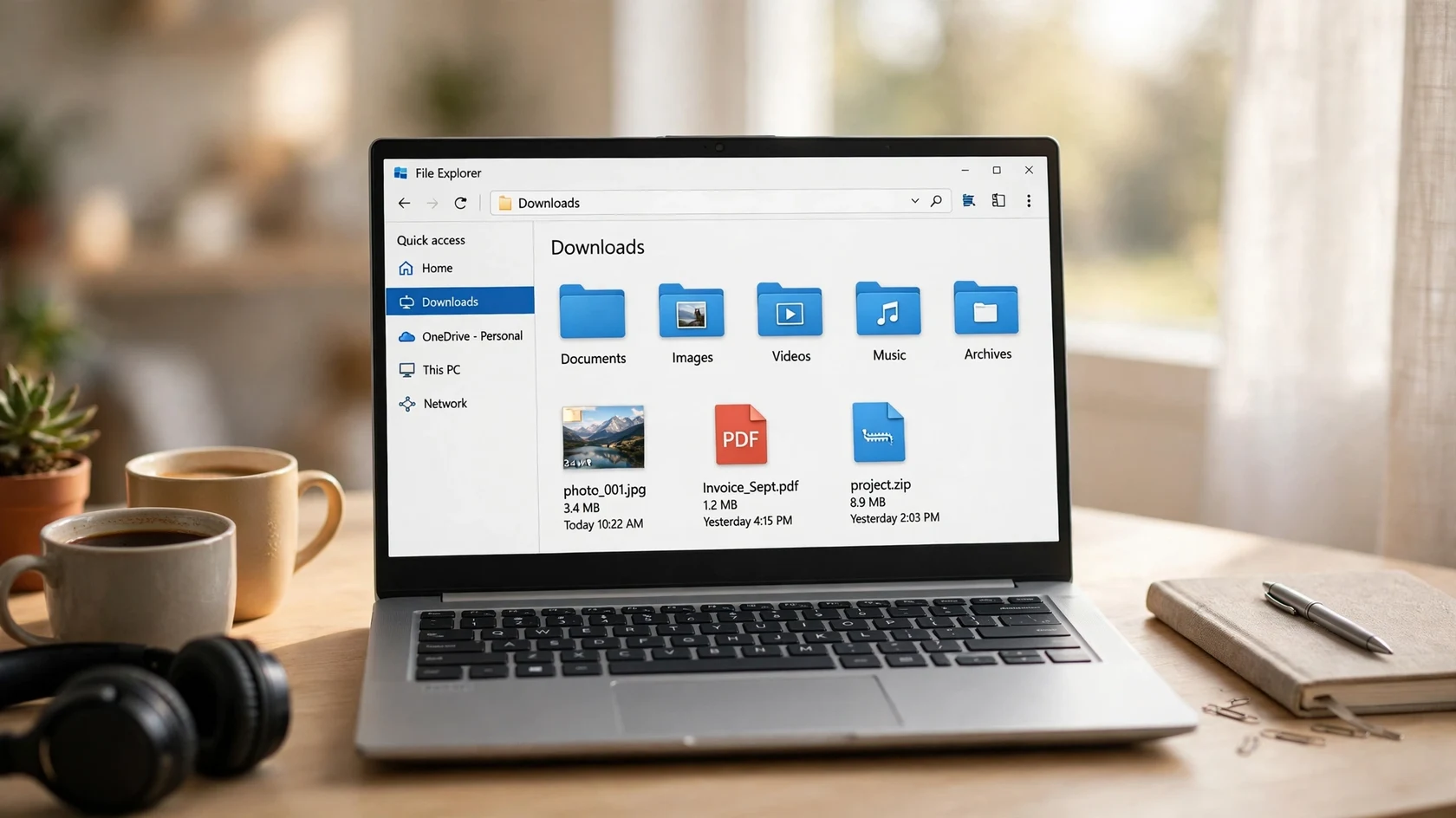
How to Keep Your Downloads Folder Clean on Windows
Your Downloads folder is where files go to hide. Learn a simple sort by type system, the built-in Windows tools that help, and a five-minute weekly routine that keeps the mess from coming back.
Lecture slides in Downloads, essays named final_final_v2, and a desktop covered in screenshots. This guide gives you a simple folder system, a file naming habit, and a ten minute weekly tidy that keeps your university files findable all year.
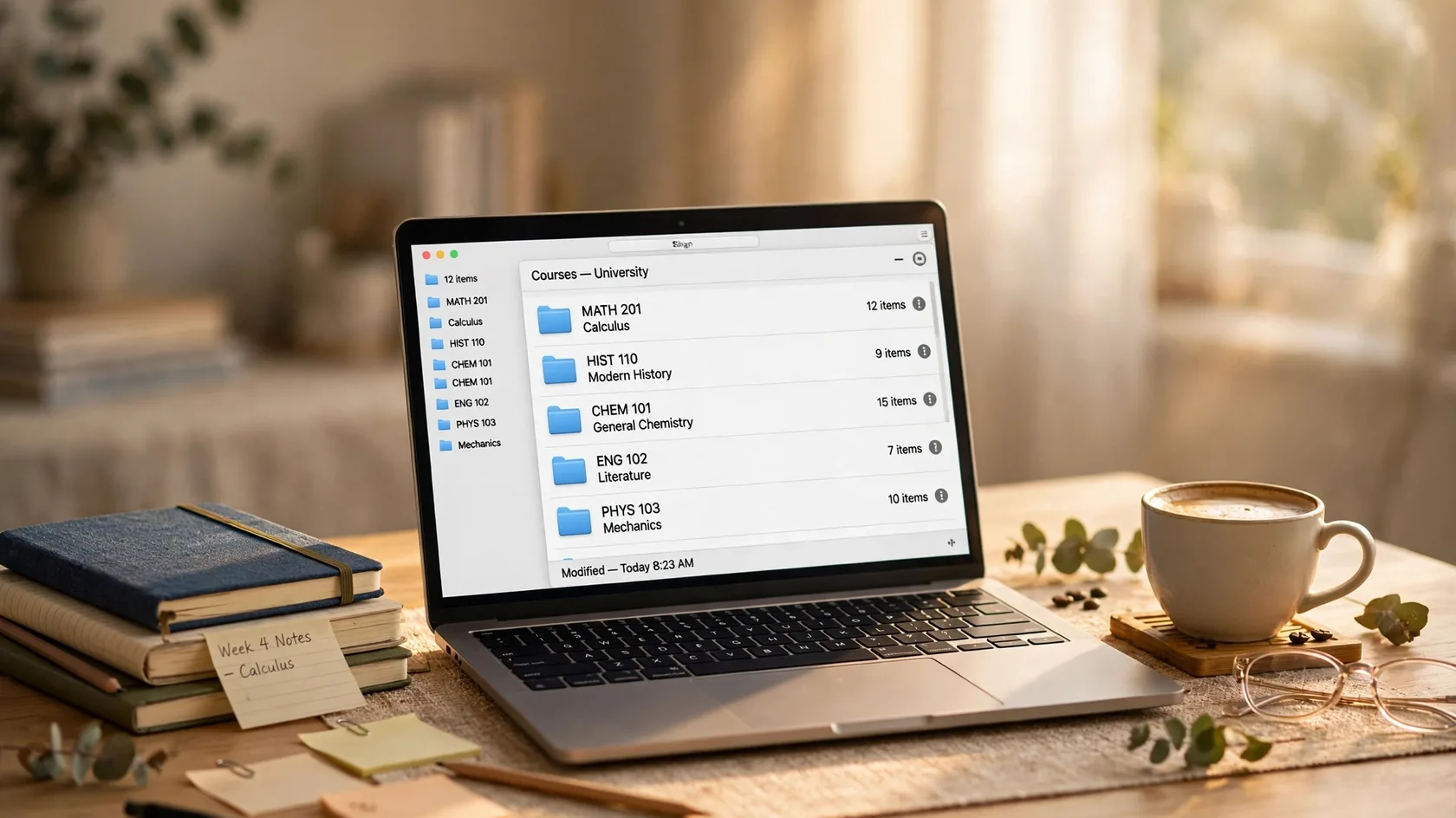
Open your Downloads folder right now and take an honest look. Lecture slides mixed with memes, three copies of the same essay named final, final_v2 and final_FINAL, a screenshot from March that you no longer recognise, and somewhere in there the reading you need for tomorrow's seminar. If that sounds familiar, you are not disorganised. You just never built a system, and university is the first time in your life when the volume of files is high enough for that to hurt. This guide builds you a simple one: a folder structure you can set up in an afternoon, a naming habit that takes seconds, and a weekly tidy so short you will actually do it.
The obvious cost is the search. You know the file exists, you just cannot find it, so you spend ten minutes digging through folders while the deadline ticks. Multiply that by every assignment of every course and you have lost hours to a problem that a folder system solves once. But there is a quieter cost too. When your files are a mess, starting work feels heavier. Opening a chaotic folder to write an essay is like sitting down at a desk covered in yesterday's plates: technically you can work, but everything in you wants to do something else first.
There is also the risk nobody thinks about until it happens. A laptop dies, a USB stick goes missing, a cloud account gets locked, and suddenly the essay you spent a week on exists in exactly one place that no longer works. Organisation and backups are really the same habit: knowing where your work is, and knowing there is a second copy somewhere safe.
Every system below rests on a single rule. All university work lives in one folder, and nothing university related lives anywhere else. Not on the desktop, not in Downloads, not in a folder called New Folder (3). One home. When you need something, you know where to look. When you back up, you know what to copy. When the semester ends, you know what to archive. Everything else is detail.
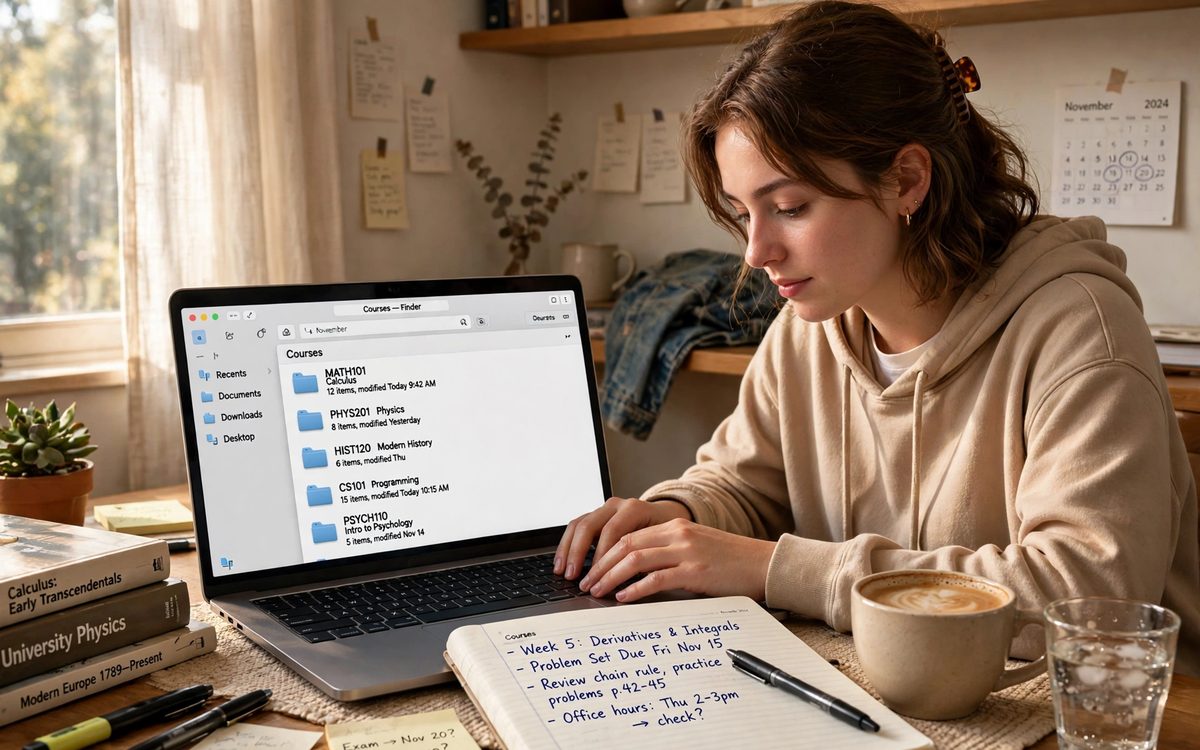
Here is what the system looks like when it is filled in. Steal it exactly, or bend it to fit your courses. The point is not the perfect structure; it is having one structure, used the same way every time, so finding a file becomes a reflex instead of a hunt.
| Folder | What lives here | Example |
|---|---|---|
| University/CS101/ | Everything for one course | Lecture slides, readings, your lab reports |
| University/CS101/Assignments/ | Work you hand in | Drafts, the submitted version, the feedback |
| University/_Inbox/ | New files, unsorted | Downloads waiting to be filed on Friday |
| University/_Archive/ | Finished semesters | Last year's courses, kept but out of the way |
Keep the structure shallow: two or three levels deep at most. If you have to click five times to reach a file, the folder is too deep and you will stop using it.
Folders get you to the right neighbourhood. File names get you to the right door. A file called essay.docx tells you nothing, and a folder full of them is barely better than no folders at all. Good names have three parts: a date or a course code, a short description, and a version. They take five seconds to type and they save you from opening six files to find the right one.
No system survives without maintenance, and maintenance fails when it feels like a chore. So make it tiny: ten minutes, once a week, same time every week. Friday afternoon works well, because it closes the week and your files are ready for Monday. Set a repeating reminder and treat it like brushing your teeth, not like a project.
If finding a file takes more than thirty seconds, the system needs fixing, not you. Change the folder or the name on the spot, while the annoyance is fresh, and the system gets better every week.

Ask any student who has lost an essay and they will tell you the same thing: they meant to back it up. Backups feel optional right up until the moment they are not, and the fix is to make them automatic and boring. You need two copies of anything that matters, in two different places, and at least one of them should update itself without you thinking about it.
Reading this with a drive that already looks like a junk drawer? Do not try to fix it all in one night. A grand reorganisation is the kind of project that starts enthusiastically and dies halfway, leaving you with two messes instead of one. Sort in passes, and let the new system carry the weight from today onward.
A tidy drive will not write your essays for you, but it removes a small daily friction that adds up to real hours and real stress over a degree. Set up the folders today, name the next file properly, and do the first ten minute tidy this Friday. Future you, the one searching for a reading five minutes before a seminar, will be grateful.
Fewer than you think. One home folder, one folder per course, and the same four subfolders inside each course is enough for most students. If you need more than three levels of folders to reach a file, your structure is too deep, and you will stop using it. Add folders only when a real pile of files forces you to, not in advance.
Use whichever one your university already gives you, since student accounts usually include generous storage and it keeps your work in the same place as your university email. The tool matters far less than the habit: one home folder, automatic sync switched on, and a second copy somewhere else. Any major cloud drive does that job well.
Date first in year, month, day order, then the course code, then a short description, then a version number: 2026-11-17-CS101-essay-v2.docx. That order sorts correctly, tells you what the file is without opening it, and makes the newest version obvious. Avoid the word final, and use hyphens instead of spaces.
Your cloud sync should run constantly, so your main copy is backed up every time you save. Check it weekly during your tidy, and make a second copy on an external drive at the same time. Before a major deadline, make one extra manual copy as well. The whole routine takes about two minutes a week.
Start with the new structure, not the old mess. Set up the folders, move in only this semester's active files, and sweep everything else into one folder called Old Files. Your daily work is organised from today, and you can sort the old files a little at a time, one course per session, with no deadline and no pressure.
Keep reading
Your Downloads folder is where files go to hide. Learn a simple sort by type system, the built-in Windows tools that help, and a five-minute weekly routine that keeps the mess from coming back.

Excel shows up in lab reports, budgets, group projects and part-time jobs. Learn the ten skills that cover most student work, with small practice tasks you can finish in one sitting.

Before you buy anything: the free software fixes, settings changes and clean-ups that bring an ageing laptop back to comfortable everyday speed.