Zotero for Beginners: Organise Your Research Library in One Afternoon
Set up Zotero from scratch: install the connector, save references in one click, organise collections, and generate a perfectly formatted bibliography.
Every researcher reaches the moment where a folder of PDFs named things like final_paper_v3_REAL.pdf stops working. Zotero is the free, open-source reference manager that fixes this: it stores your sources, organises them, and writes your citations and bibliography in whatever style your journal or university demands.
Who this guide is for
This guide is for students and researchers who currently keep references in a document footer, a spreadsheet, or a folder of PDFs with hopeful filenames. If you are writing anything longer than a short essay — a dissertation, a thesis, a systematic review — a reference manager stops being optional. Zotero is the one we recommend starting with: it is free, open source, works on Windows, macOS and Linux, and is developed by a non-profit, so your library is never held hostage by a subscription.
Step 1: Install Zotero and the browser connector
Download Zotero from zotero.org — it is free for Windows, macOS and Linux.
Install the Zotero Connector for your browser (Chrome, Firefox, Edge or Safari).
Create a free Zotero account so your library syncs between computers. The free account includes 300 MB of file storage.
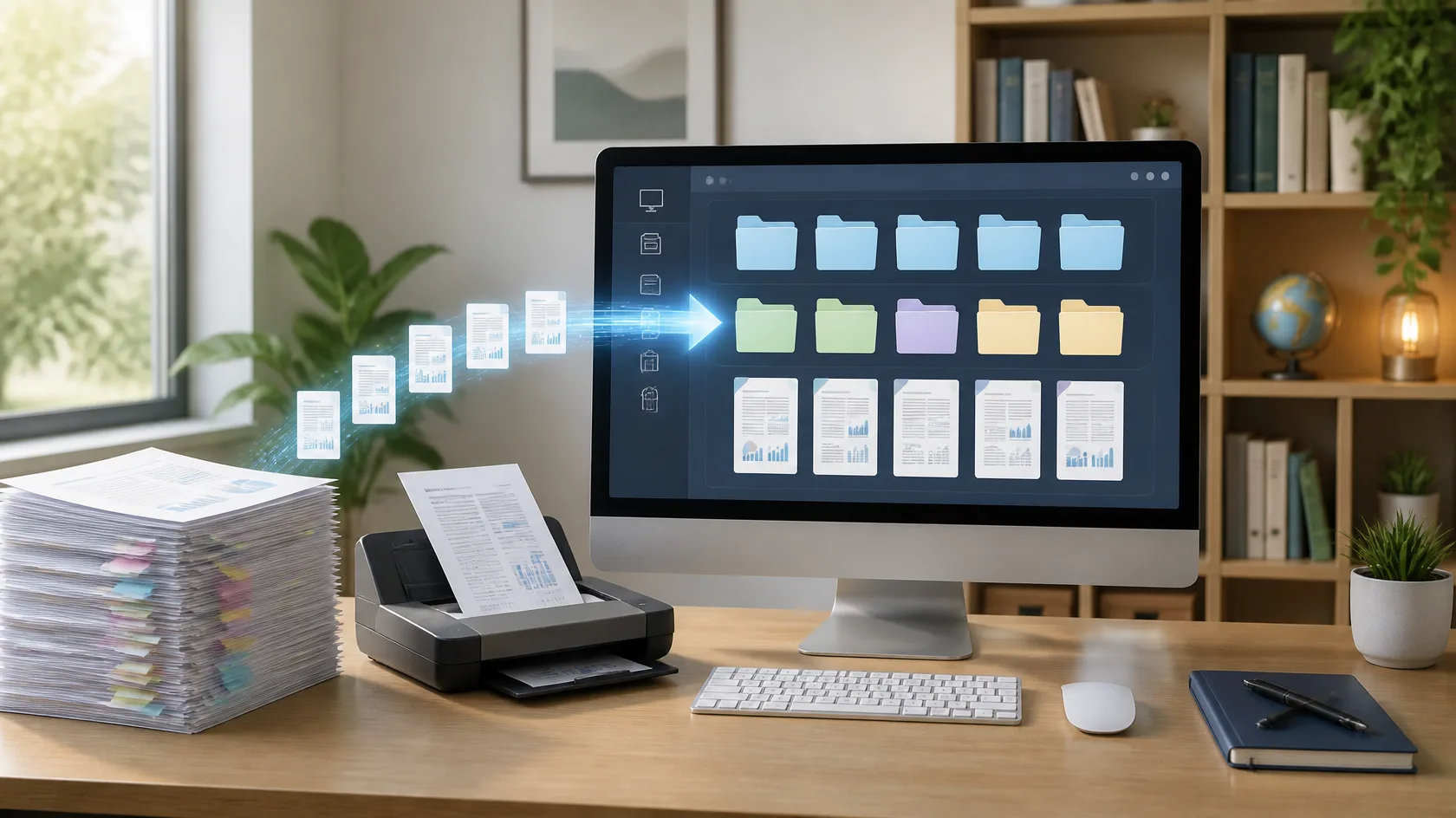
A reference library should feel like tidy shelves, not a junk drawer of PDFs.
Step 2: Save your first references
Open a paper's page in Google Scholar, a journal website or a publisher page and click the connector icon in your toolbar. Zotero reads the page metadata and saves the title, authors, journal, year, DOI and — when available — the PDF itself. One click per source replaces ten minutes of typing reference details by hand.
Handy tip
After saving, glance at the record: check the authors are in the right order and the title is not in ALL CAPS. Ten seconds of tidying now saves an embarrassing bibliography later.
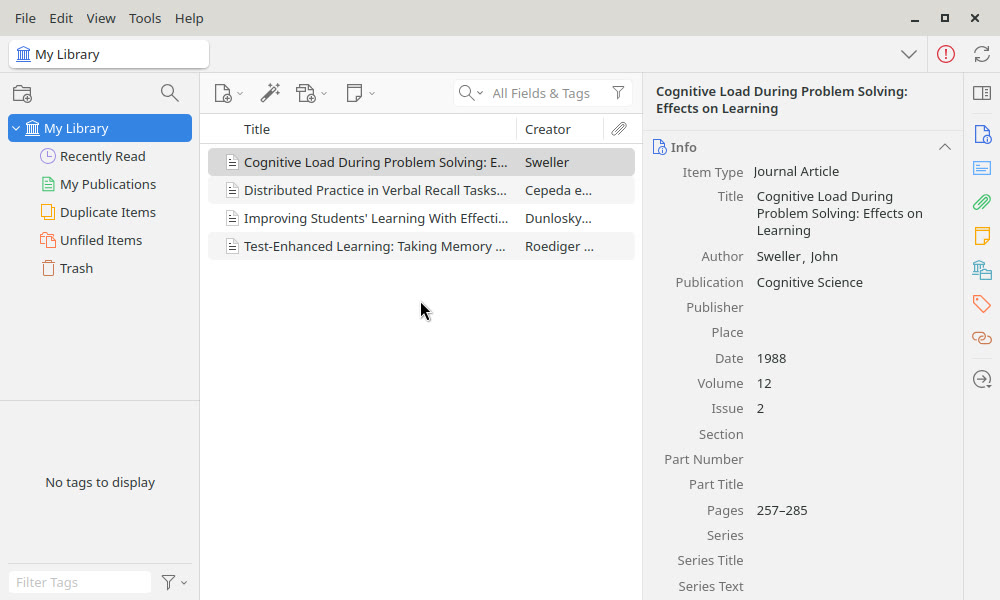
A small Zotero library after a few saves: references in the centre pane, and the selected record's full details — authors, journal, year, pages — on the right. Screenshot: Zotero on Linux.
Notice the details pane on the right of the screenshot. Every field there — title, authors, journal, year, volume, pages, DOI — came across automatically when the item was saved. If a field is wrong, click it and type the correction; Zotero saves as you go. Getting one record perfect matters more than saving fifty quickly, because every citation you ever insert reuses this data.
Step 3: Organise with collections and tags
Collections work like folders: create one per project, module or thesis chapter. A single item can live in several collections at once, which plain folders cannot do. Add tags for status — to-read, read, cite-in-intro — and your library starts answering questions like 'which methods papers have I actually read?'
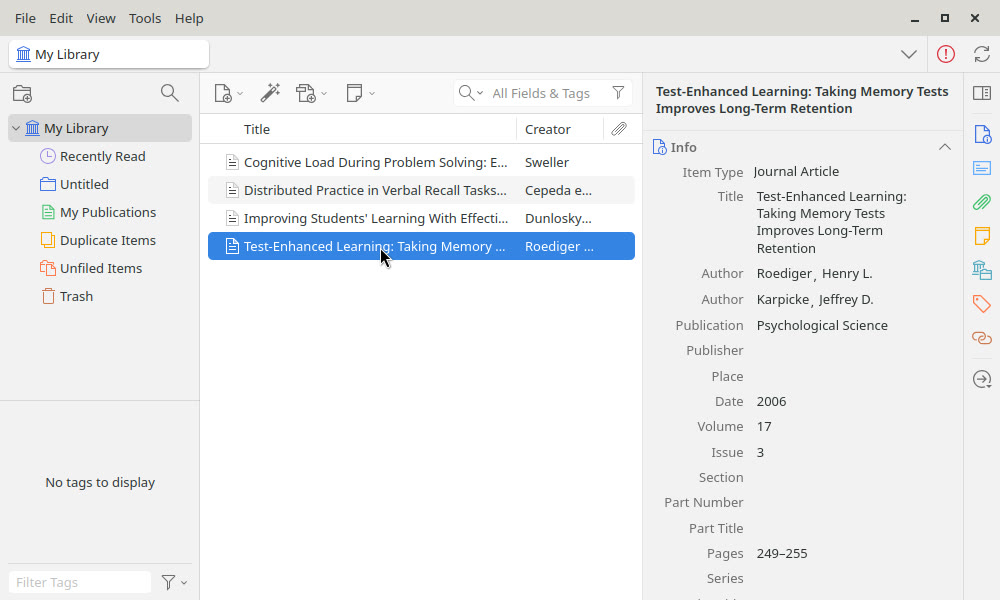
One record, checked and complete: both authors in the right order, the journal name, year, volume, issue and page range. Ten seconds of checking here is what makes the final bibliography trustworthy. Screenshot: Zotero on Linux.
Step 4: Cite while you write
Zotero installs a plugin for Word, LibreOffice and Google Docs. Place your cursor, click Add/Edit Citation, search for the source, and Zotero inserts a formatted in-text citation. At the end, one more click generates the full bibliography — and it updates automatically if you add or remove citations. Switching styles, say from APA to Vancouver, is a single menu choice.
Two citation-dialog details are worth learning early. First, when you search for a source in the red citation bar, you can click the item (or press the small arrow on it) to add page numbers and choose a locator such as chapter or figure — examiners love precise citations. Second, the style lives in the document, not in Zotero: use Document Preferences in the Zotero toolbar of your word processor to change the whole document from, say, APA to Harvard in one move, including the bibliography.
Step 5: Back up and sync sensibly
Your Zotero data folder holds everything. Syncing handles the reference database for free; attached PDFs count against the 300 MB storage quota. If you exceed it, link files from a cloud folder instead of storing them in Zotero, or pay for extra storage. Either way, back it up the right way: close Zotero and copy the whole data directory (the folder that holds the zotero.sqlite file and the storage folder) to another drive or a cloud folder. Do not treat an export as a backup: Zotero's own documentation warns that an exported library does not re-import as an exact copy, and re-importing can break the citation links in documents you have already written. Keep exports (BibTeX, RDF, CSV) for what they are good at: sharing a library, or moving to a different tool.
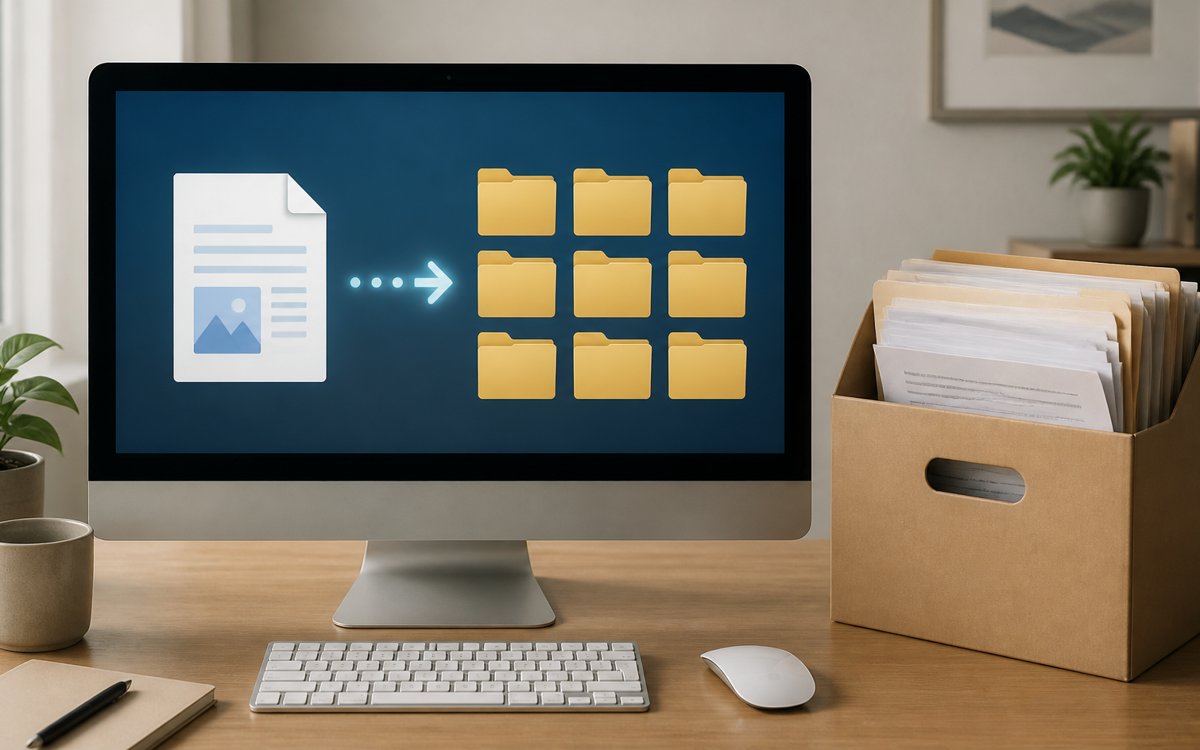
One click in the browser, and the reference files itself away — that is the connector doing its job.
Common beginner mistakes
Saving the same paper twice from different websites — merge duplicates instead (Zotero has a Duplicates view).
Typing references manually when the connector would have captured them perfectly.
Keeping PDFs only inside Zotero with no other backup of your data folder.
Pro tips once the basics feel easy
Right-click any PDF already on your computer and choose 'Retrieve Metadata for PDF' — Zotero will try to build a full record from it, rescuing the PDFs you saved before you had a system.
If the connector cannot read a page (some PDFs and older sites defeat it), save by identifier instead: the magic-wand button accepts a DOI, ISBN or PMID and fetches clean metadata.
Try ZoteroBib (zbib.org) for one-off bibliographies when you are on a library computer — it is the same citation engine in a browser, no install needed.
Working in a team? A Zotero group library gives everyone the same collection, with shared PDFs — far safer than emailing a Word document of references around.
Troubleshooting: the problems every beginner meets
The connector icon does not appear. Pin the extension to your browser toolbar first. On some pages — plain PDFs opened in the browser, or sites with unusual layouts — the icon changes to a generic page or folder symbol; clicking it still saves what it can. If a save looks empty, use Add Item by Identifier with the DOI instead.
The metadata is wrong or in ALL CAPS. Some publishers supply messy data. Click each field in the right pane and fix it, or right-click the item and look for a fresh copy via its DOI. Fix it once, at save time — a wrong record poisons every future citation.
Your 300 MB storage is full. This only counts stored PDF attachments, not records. The usual fix is to stop storing PDFs you can re-download through your library, or to keep PDFs in a cloud folder and link them instead of storing them in Zotero.
Duplicate records everywhere. Use the Duplicate Items view in the left pane, select a set, and merge — keep the version with the most complete metadata as the master. Merging is safe: citations in your documents keep working.
An afternoon of setup gives you a library that scales from a first-year essay to a PhD thesis. Start with your current project, add sources as you find them, and let the bibliography write itself.
Frequently asked questions
Is Zotero really free?
Yes. The software and the reference database sync are free, with no feature paywall. The only paid extra is optional cloud storage for attached files beyond the free 300 MB — and you can avoid needing it by linking PDFs from a folder instead of storing them in Zotero.
Zotero or Mendeley or EndNote — which should I pick?
If your university provides EndNote free and your supervisor's group uses it, that convenience matters. Otherwise Zotero is the usual recommendation: open source, excellent browser connector, and your data exports cleanly if you ever switch. Mendeley is also free but is owned by a publisher and has moved toward a more closed ecosystem.
Does Zotero work offline?
Yes. Your library lives on your computer, so searching, organising and citing all work with no connection. Sync simply waits until you are back online.
Can I cite with Zotero in Google Docs?
Yes — the Zotero Connector adds a Zotero menu and toolbar button inside Google Docs, with the same Add/Edit Citation workflow as Word and LibreOffice.
What happens to my library if I stop using Zotero?
Nothing is locked in. You can export your whole library in standard formats (BibTeX, RIS, CSV) at any time and import it into another manager — one more reason the open approach is safer for a multi-year degree.
The Fundora Editorial Team is a small group of educators, researchers and tech writers. We test the tools and methods we recommend, prefer free options, and update our guides when things change.
Your thesis topic will live with you for months, so choose it properly. Learn how to brainstorm widely, test ideas against interest, feasibility and contribution, and narrow a vague interest into a question you can actually finish.
A research proposal is a promise and a plan. Learn the sections reviewers expect, how to frame a sharp question, write a methodology that survives scrutiny, and the feedback loop that turns a draft into an approval.
Research papers are not novels. Learn the three-pass method — skim, read, interrogate — with time budgets, a comparison table and the five-question note that makes papers stick.
22 October 2026· 8 min read
The Fundora Letter
Never miss a post
One useful guide, every Sunday — the week's best study, research and AI-tool guides, delivered quietly to your inbox. No spam, no selling your address — unsubscribe any time.
Signups are handled by Brevo, our email service — your address is stored on Brevo's servers so we can send the letter. It is never sold, and every issue has an unsubscribe link.
Fundora uses cookies to analyse traffic and improve your experience. Learn more