Build a Student Dashboard in Notion: The Free Setup That Runs Your Semester
Design a simple Notion dashboard for assignments, deadlines, notes and revision — using only the free plan, with a page structure you can copy in an hour.
Notion can become a second job if you let it — endless templates, endless tweaking. This setup is the opposite: one dashboard, four building blocks, free plan only, built in about an hour and then left alone to do its job.
Who this guide is for
This guide is for students who like the idea of Notion more than the reality of maintaining it — who have built beautiful dashboards in September and abandoned them by October. The design rule here is restraint: the smallest system that answers three questions at a glance. What is due? Where are my notes? What should I revise next? If a page or property does not answer one of those, it does not get built.
The structure: one hub, four pages
Dashboard — the single page you open every morning.
Assignments — one database holding every deadline you own.
Modules — one page per course, linking to its notes.
Revision — a simple tracker of topics and their confidence level.
The assignments database (the heart of the system)
Create a database with five properties: Task (title), Module (select), Due date (date), Status (select: To do, Doing, Done) and Effort (select: S, M, L — a rough size guess). Add a calendar view filtered to unfinished tasks. That filtered calendar is the most honest picture of your semester you will ever see.
Handy tip
Enter every deadline the day the syllabus arrives, not the week it is due. The dashboard only works if it knows more than your memory does.
Two additions make the assignments database earn its keep. First, a 'This week' view: a list view filtered to Due date within the next seven days and Status not Done — this is the view to check with morning coffee. Second, turn on due-date reminders inside Notion for the big items (essays, exams, lab reports); a deadline you only discover inside an app you forgot to open is just a diary of regrets. If you use a calendar app religiously, Notion Calendar is a free companion app that displays these same due dates alongside your timetable.
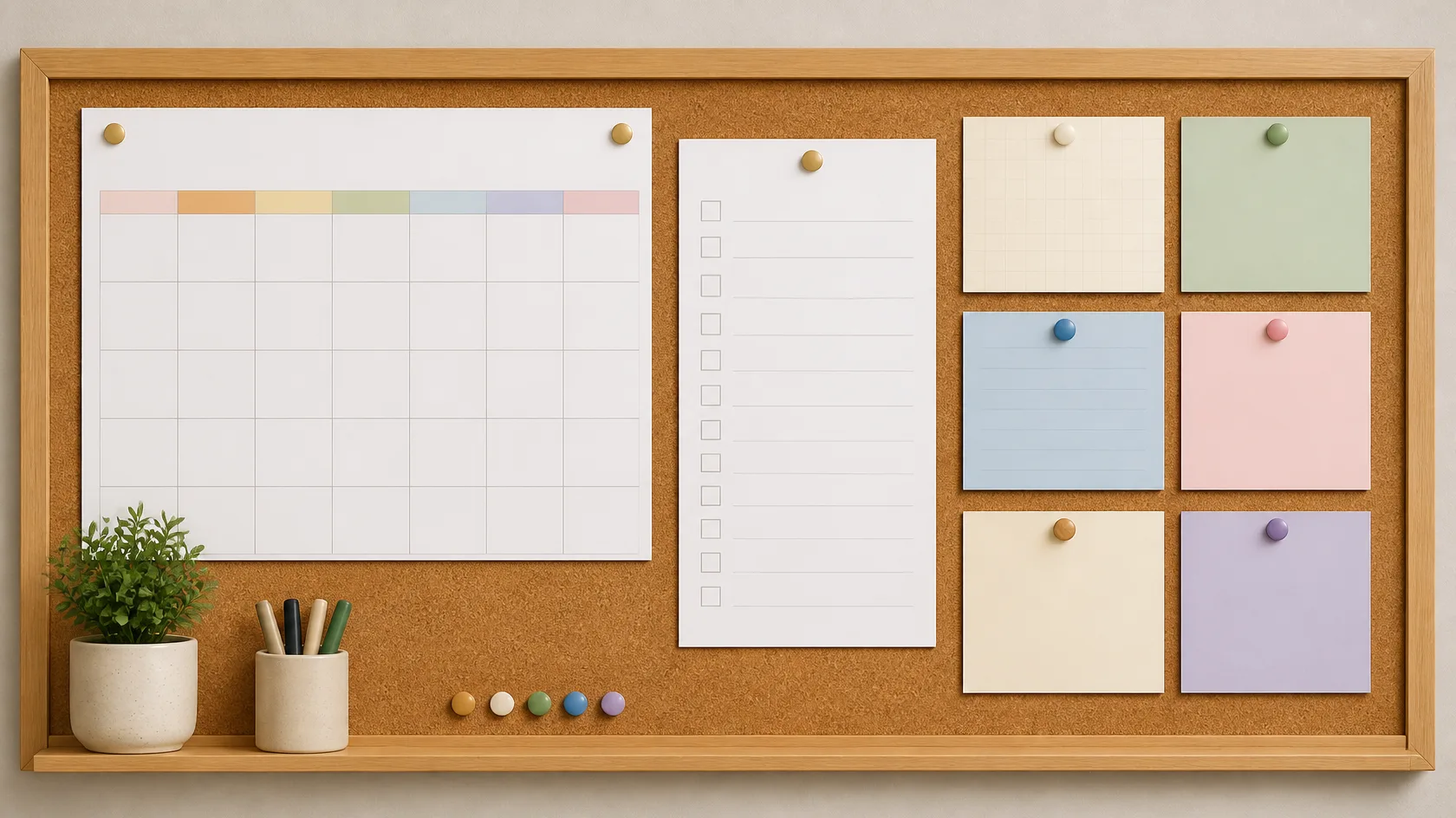
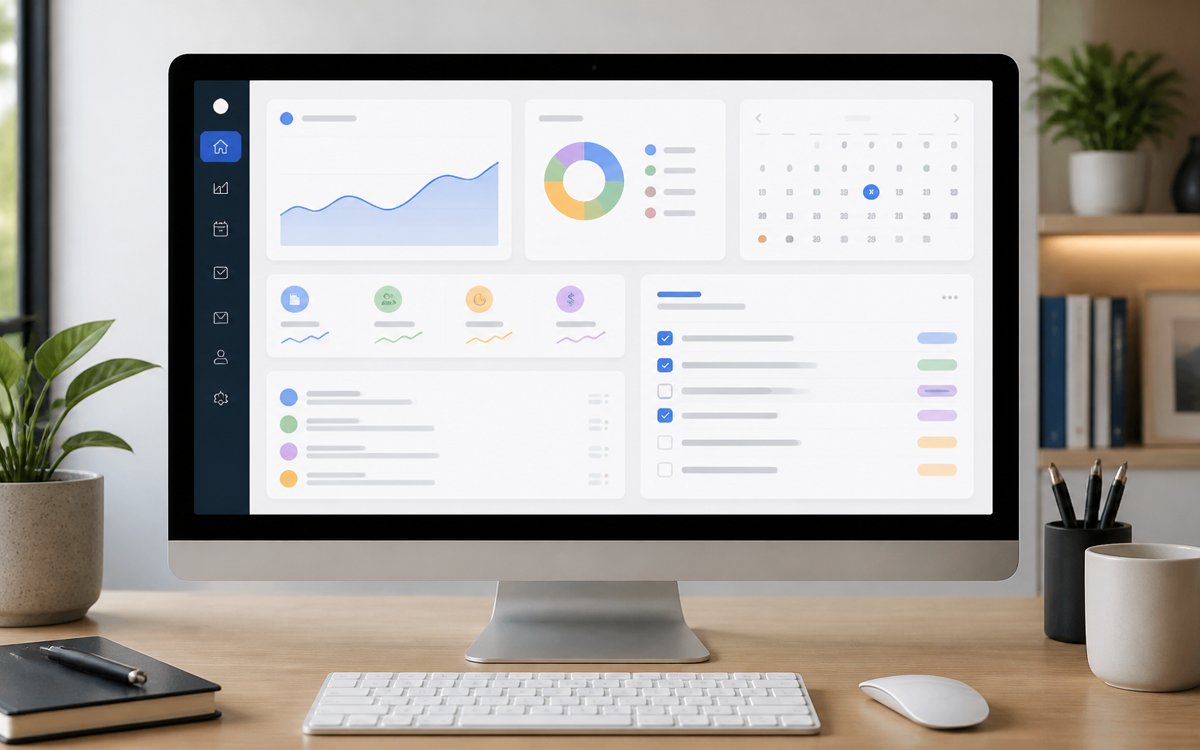
One hub, four pages: everything a semester needs, visible at a glance.
Module pages that stay useful
Keep each module page boring: lecture notes in date order, a links section for slides and readings, and a filtered view of the assignments database showing only that module's tasks. Boring is good — you are building a filing system, not a poster.
The revision tracker
A second small database: Topic, Module, Confidence (1–3) and Last revised (date). Sort by confidence ascending and oldest date first, and your next revision session chooses itself. This works beautifully alongside a Pomodoro routine: one block, one red topic.
Affiliate disclosure: Some links in Fundora articles are affiliate links. If you buy through them, we may earn a small commission at no extra cost to you. It never changes which tools we recommend — see our Disclaimer.
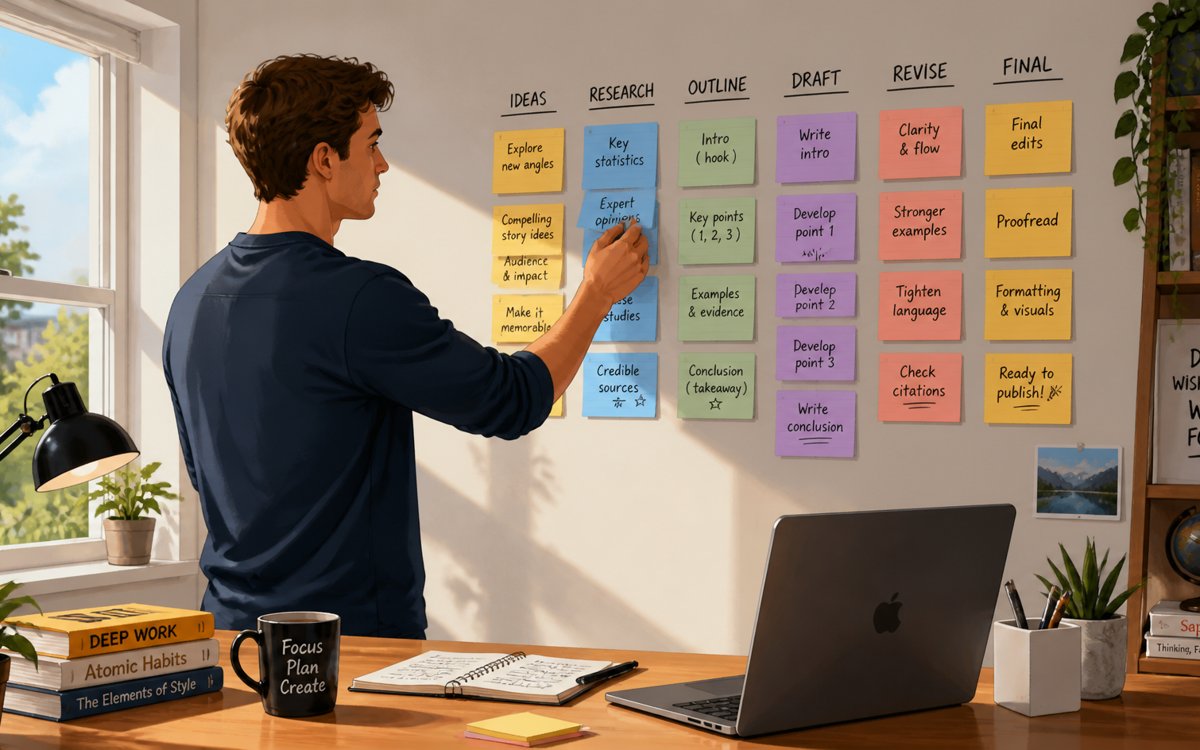
Capture first, organise second — the dashboard only works if adding to it is effortless.
The five-minute Sunday review
Open the 'This week' view and confirm nothing due has an empty plan — every task gets a next action, however small.
Move anything you finished to Done, and drag last week's undone tasks to honest new dates (not hopeful ones).
Spend one pomodoro updating the revision tracker: which topics dropped in confidence this week?
Add next week's deadlines from email and course pages while they are fresh — the syllabus is not the only place deadlines are born.
Close the laptop. The system is now carrying the load until next Sunday.
Five honest minutes weekly is the entire maintenance cost of this setup. Skip a week and nothing breaks; skip a month and the dashboard becomes archaeology — the review ritual is the product, the pages are just its furniture.
Notion's free plan covers everything in this setup for a single user. The limits that matter are file upload sizes and guest collaborators — neither affects a personal dashboard. Resist the template marketplace: every feature here is built from pages, databases and linked views that the free tier includes.
Pro tips for a dashboard that survives the semester
Keep one 'Inbox' page for captures on the move — links, half-thoughts, a photo of a whiteboard. Process it during the Sunday review; an inbox you trust is what stops you rebuilding the system every month.
Make a lecture-note template once (date, topic, three key points, questions) and reuse it from the database's New button. Consistency makes notes searchable and revision faster.
Archive finished modules into a single 'Past modules' page instead of deleting them. Next year's courses have a habit of assuming this year's knowledge.
Put the dashboard in your phone's home screen and your browser's new-tab page. The best system is the one that is already open.
Troubleshooting: when Notion stops helping
The dashboard has become a hobby. Symptoms: more time decorating than studying, properties multiplying, templates for templates. Cure: delete every view you have not opened in two weeks and return to the four building blocks. You can rebuild the fancy version in the holidays, with evidence about what you actually use.
Deadlines slipped past unnoticed. The database knew, but you never looked. Add the reminders inside Notion, pin the 'This week' view where you will see it, and let the Sunday review catch the rest — no app fixes a habit of not opening it.
Sharing with a study group hit the free plan's guest limits. Duplicate the shared pages into a separate workspace for the group, or share a view-only link. Keep your personal dashboard — the honest one, with your real confidence scores — private.
You need your notes offline. Notion's apps cache pages you have opened, which covers most library dead zones if you open the day's pages on Wi-Fi first. For genuinely offline work (fieldwork, long flights), export the critical pages to PDF from the page menu as a belt-and-braces copy.
Set it up once, review it for five minutes every Sunday, and let the system carry the mental load. Your brain is for learning the material, not for storing its deadlines.
Frequently asked questions
Is Notion's free plan really enough for a full degree?
For a single student, yes. The free plan includes unlimited pages and blocks for personal use, which is everything this dashboard needs. Its real limits are a per-file upload cap (5 MB per file) and a small allowance of guests — neither matters for a private study system. Always confirm current limits on Notion's pricing page, as plans evolve.
Notion, OneNote or Obsidian — how do I choose?
Choose by where your friction is. OneNote is the most forgiving for handwriting and quick capture, and your university may provide it. Obsidian stores notes as local files — best for people who think in links between ideas and want total ownership. Notion wins when deadlines and databases are the problem, which is most students, most semesters.
Will I lose everything if I stop using Notion?
No. Any page can be exported (Markdown or PDF, and whole workspaces can be exported too), so your notes are not trapped. Exporting a backup once a term is a sensible habit regardless of which app you use.
Does the dashboard sync between my phone and laptop?
Yes — Notion is account-based, so the same dashboard appears on every device you sign in to, usually within seconds. The phone app is best used for capture and checking; the heavy setup is more comfortable on a computer.
How long does this setup actually take?
About an hour for the four building blocks if you follow the guide without detours. The trap is decorating: give yourself the hour, stop, and let a month of real use tell you what (if anything) is missing.
The Fundora Editorial Team is a small group of educators, researchers and tech writers. We test the tools and methods we recommend, prefer free options, and update our guides when things change.
To-do lists tell you what to do, not when to do it. Learn how to block your week into realistic chunks for classes, study, rest and life, with buffers that keep one bad day from wrecking the whole plan.
Anki turns revision into a daily habit that actually sticks. Learn how spaced repetition works, how to write cards that teach rather than test your patience, and the simple routine that keeps reviews under twenty minutes a day.
How the Pomodoro Technique works, how to adapt the classic 25-minute cycle to deep study, and the common mistakes that make people quit in week one.
12 October 2026· 6 min read
The Fundora Letter
Never miss a post
One useful guide, every Sunday — the week's best study, research and AI-tool guides, delivered quietly to your inbox. No spam, no selling your address — unsubscribe any time.
Signups are handled by Brevo, our email service — your address is stored on Brevo's servers so we can send the letter. It is never sold, and every issue has an unsubscribe link.
Fundora uses cookies to analyse traffic and improve your experience. Learn more